
Hello! Today we’ll explain in detail how to install Minecraft and its basic controls, the open-world game loved around the world.
What is Minecraft?
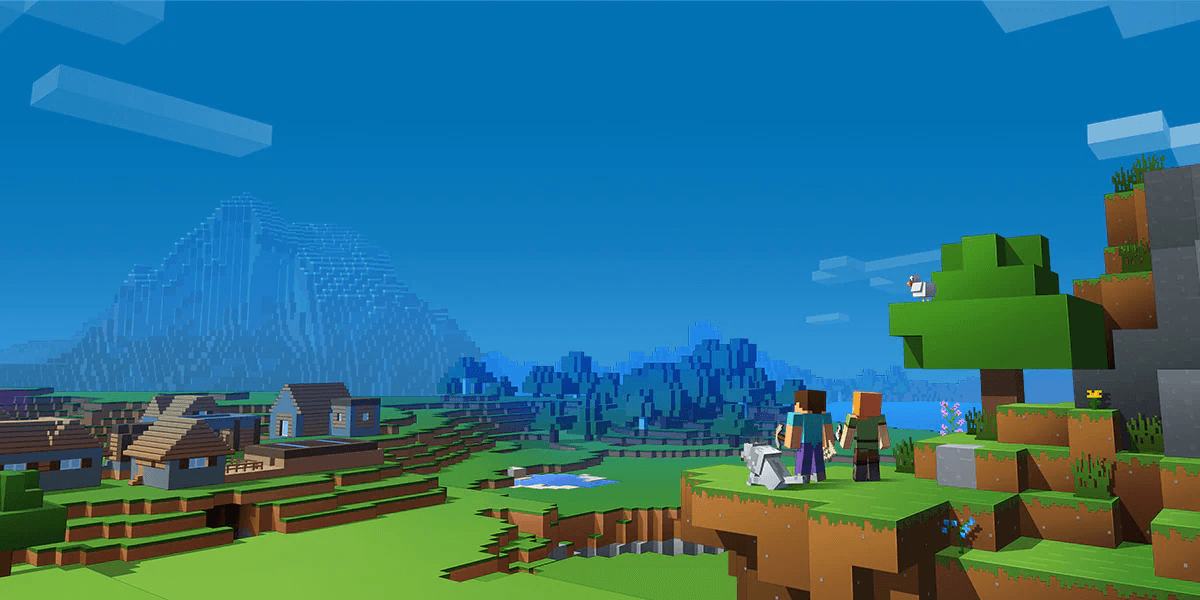
Minecraft is an open-world game where you can freely create by stacking blocks. In this world of infinite possibilities, you can adventure as an explorer, architect, warrior, or any character you choose.
In Japan, it’s commonly abbreviated as “マイクラ” (Maikura). You can enjoy survival living or freely place blocks to build structures. It was released as a public alpha in 2009 and officially released in November 2011, around which time Jens Bergensten took over development. Since then, it has been ported to various platforms, and in 2020 it was inducted into the World Video Game Hall of Fame, among many other awards.
As of 2023, global sales have surpassed 300 million copies, making it the best-selling game in the world.
Source: https://en.wikipedia.org/wiki/Minecraft
Purchasing Minecraft
Since Minecraft’s developer Mojang was acquired by Microsoft, a single purchase gives you both the Java Edition and Bedrock Edition.
This article covers the Java Edition.
First, you need to purchase the game to play Minecraft. Purchases can be made from the official website.
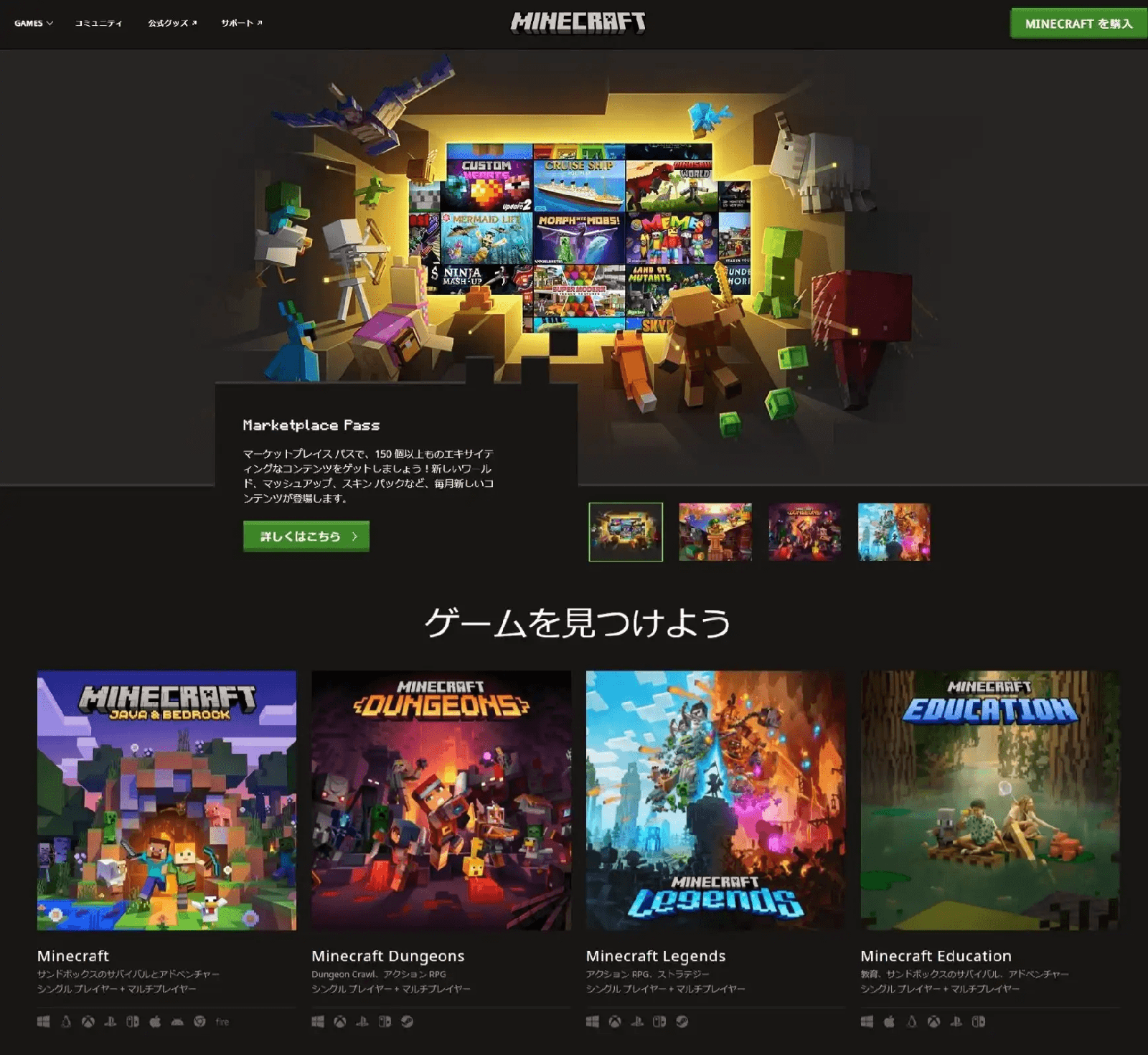
Visit the official website and click “Get Minecraft” in the upper right.
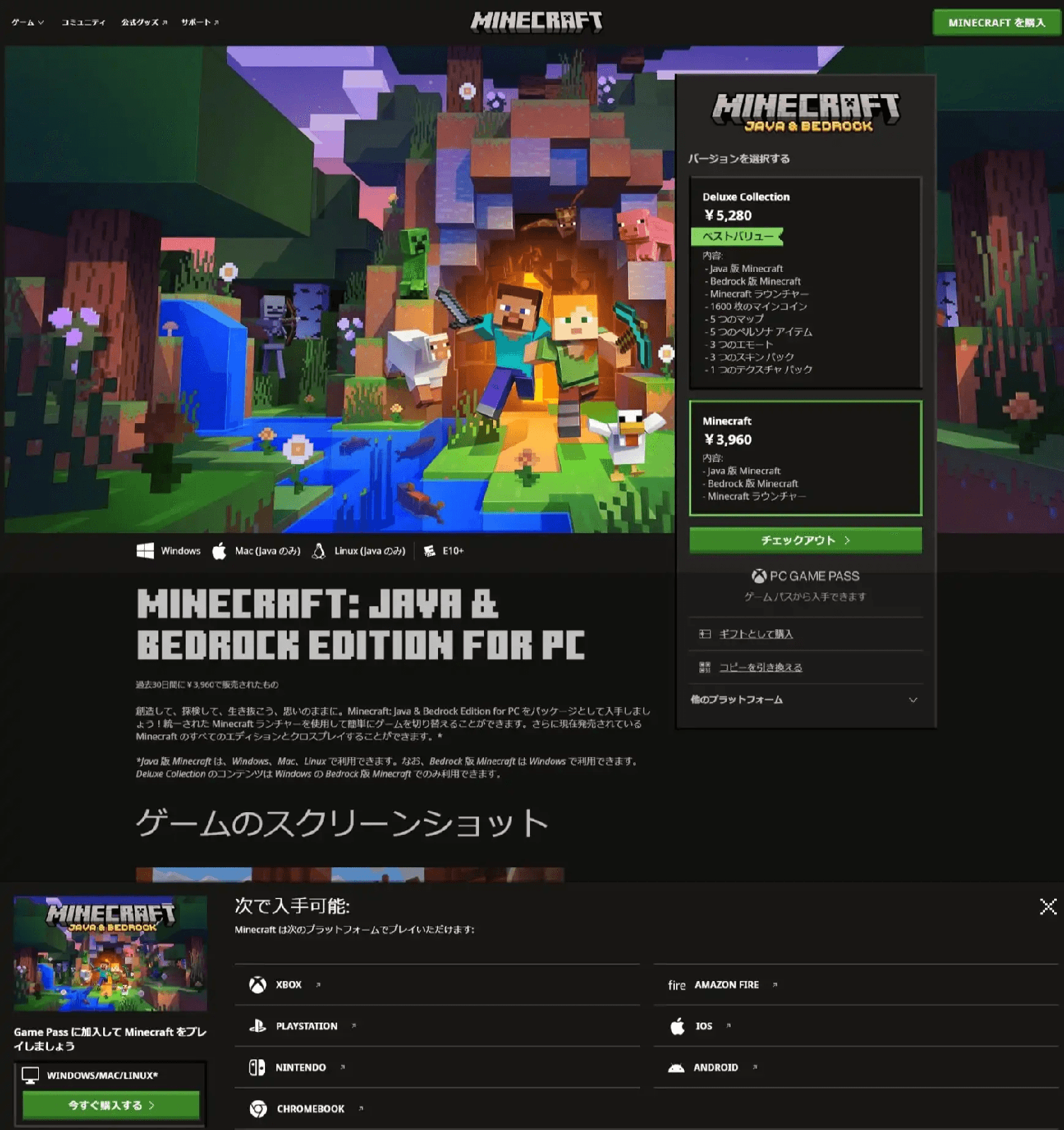
Select the version you want to purchase and click “Checkout.”
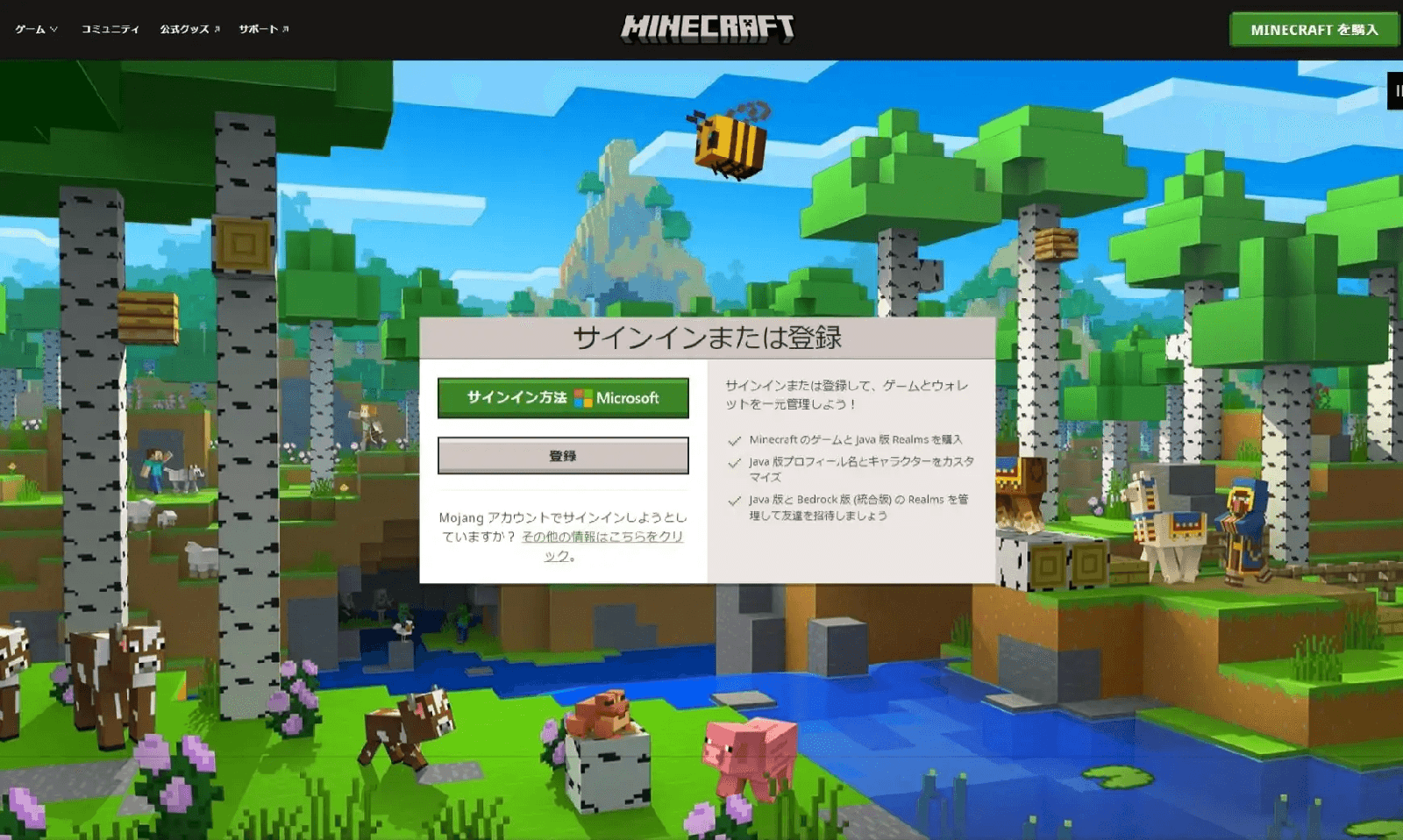
Log in with your Microsoft account. If you don’t have one, please register.
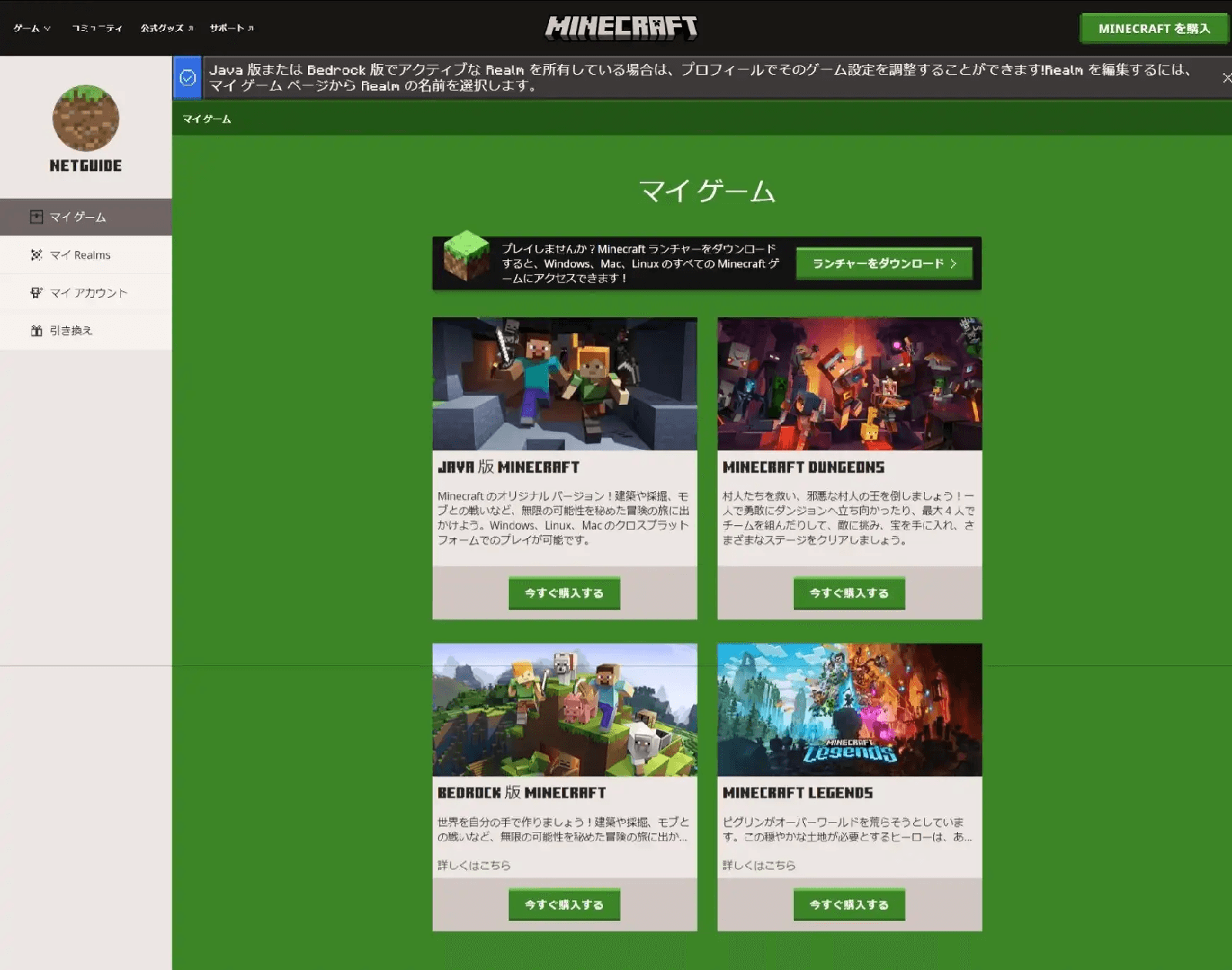
You’ll be taken to the “My Games” page. Click the “Buy Now” button for Minecraft Java Edition.
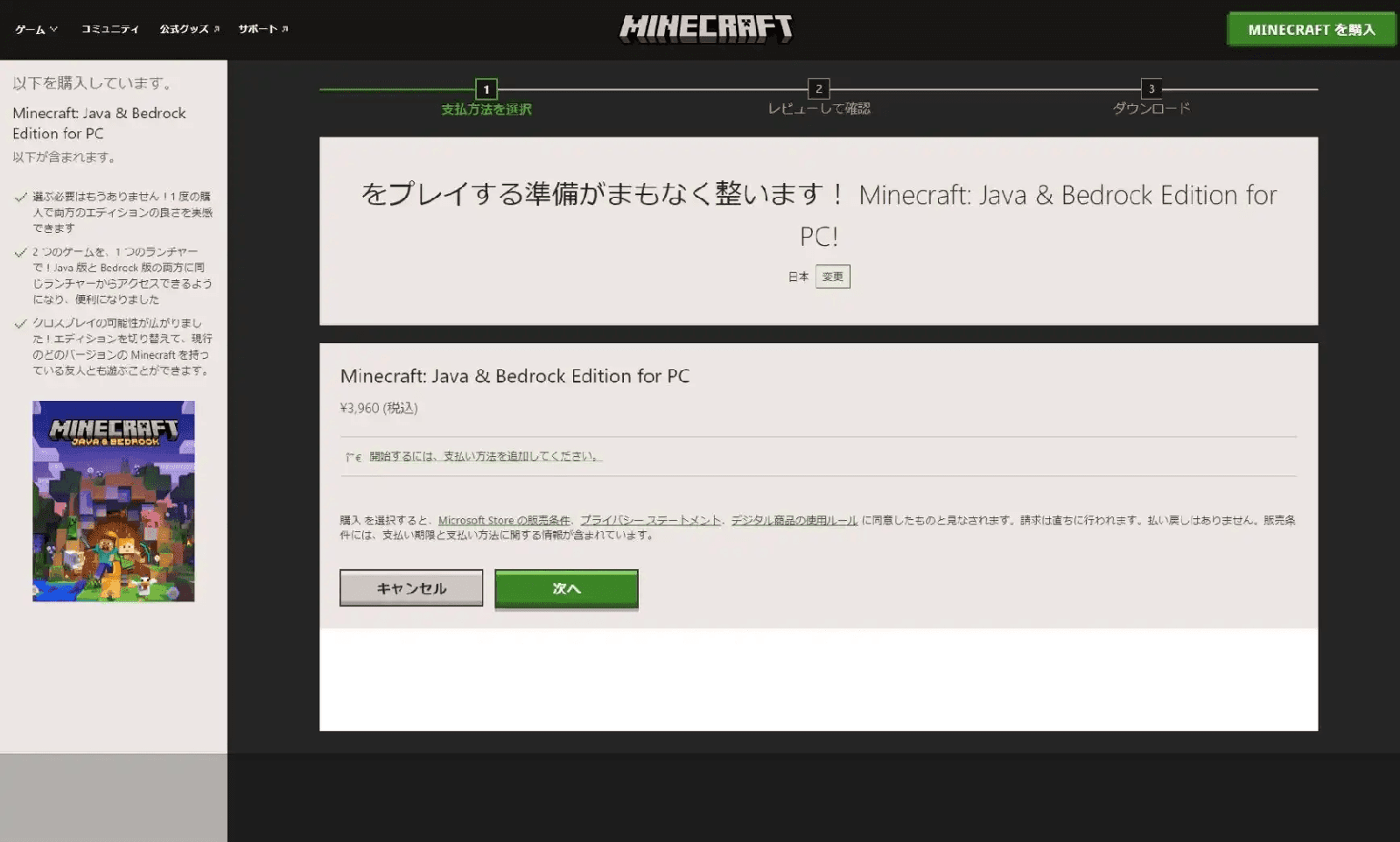
You’ll be taken to the payment screen. Add your payment method.
Payment methods include credit cards, debit cards, prepaid cards, and PayPal.
If a minor wants to purchase Minecraft, they can use prepaid cards like Kyash or Bundle Card, or ask their parents to buy it.
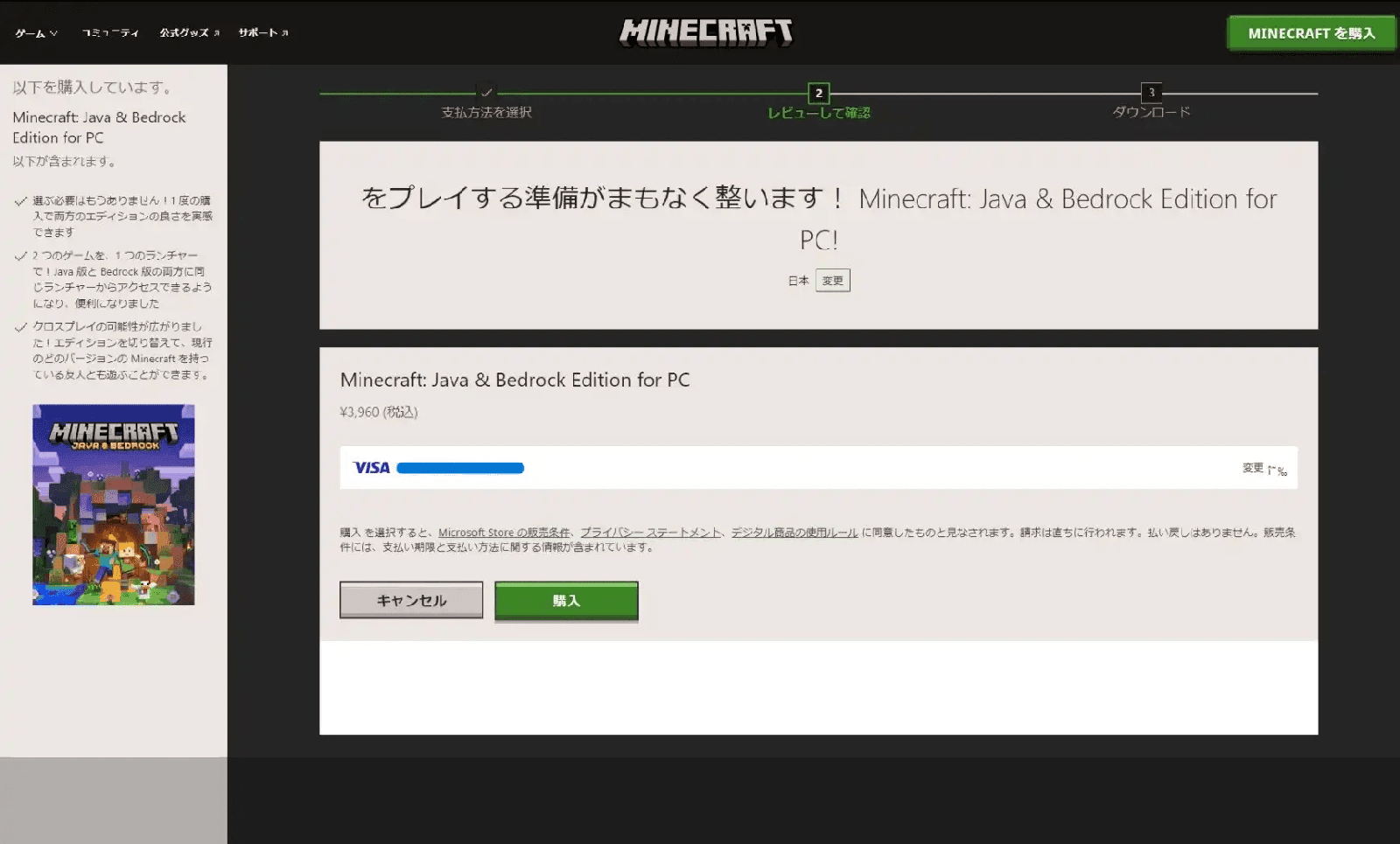
Confirm your payment method and press the purchase button.
Your Minecraft purchase is now complete.
Click the download button under “Ready to play Minecraft: Java & Bedrock Edition for PC” to download the Minecraft installer.
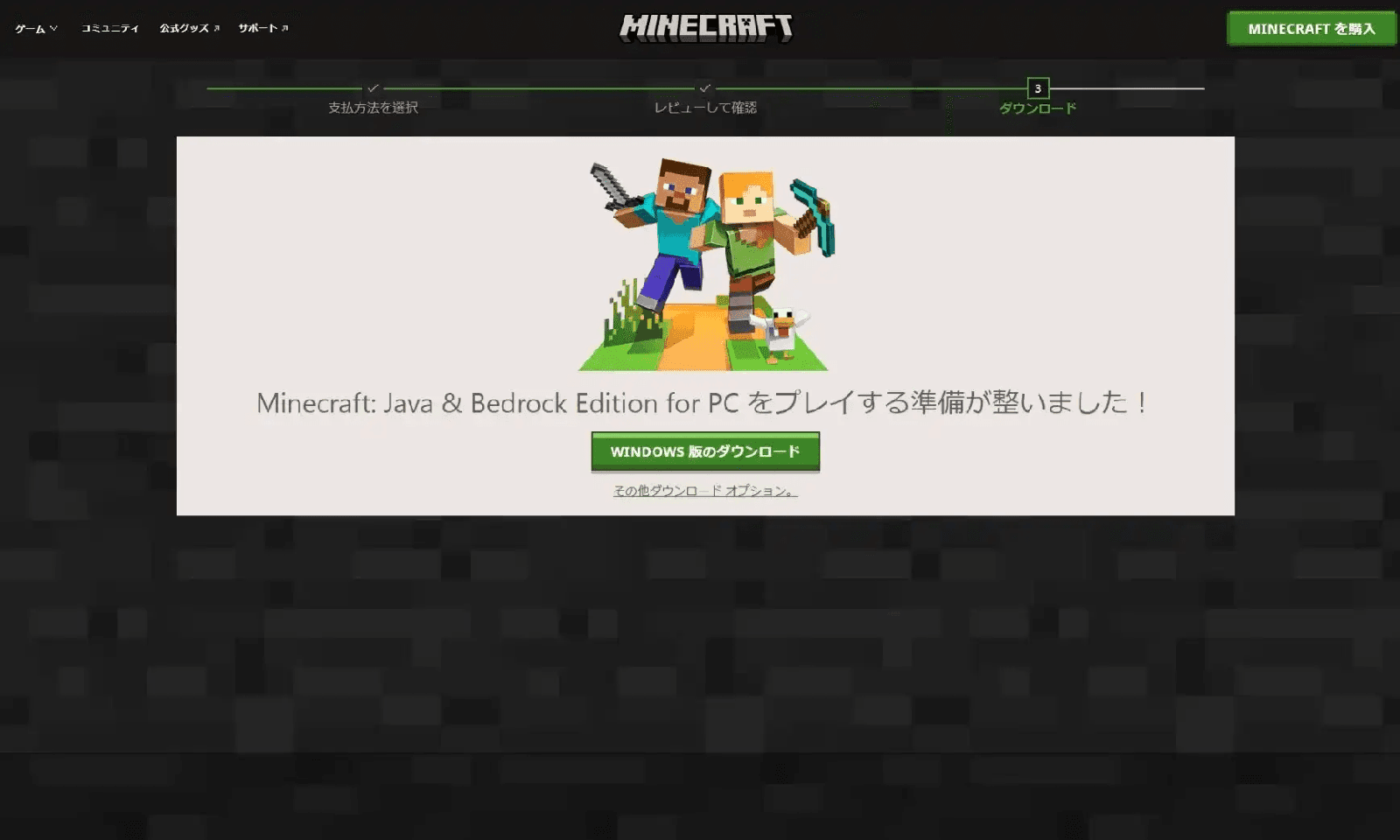
If you’ve already purchased, go to the download page and download the installer.
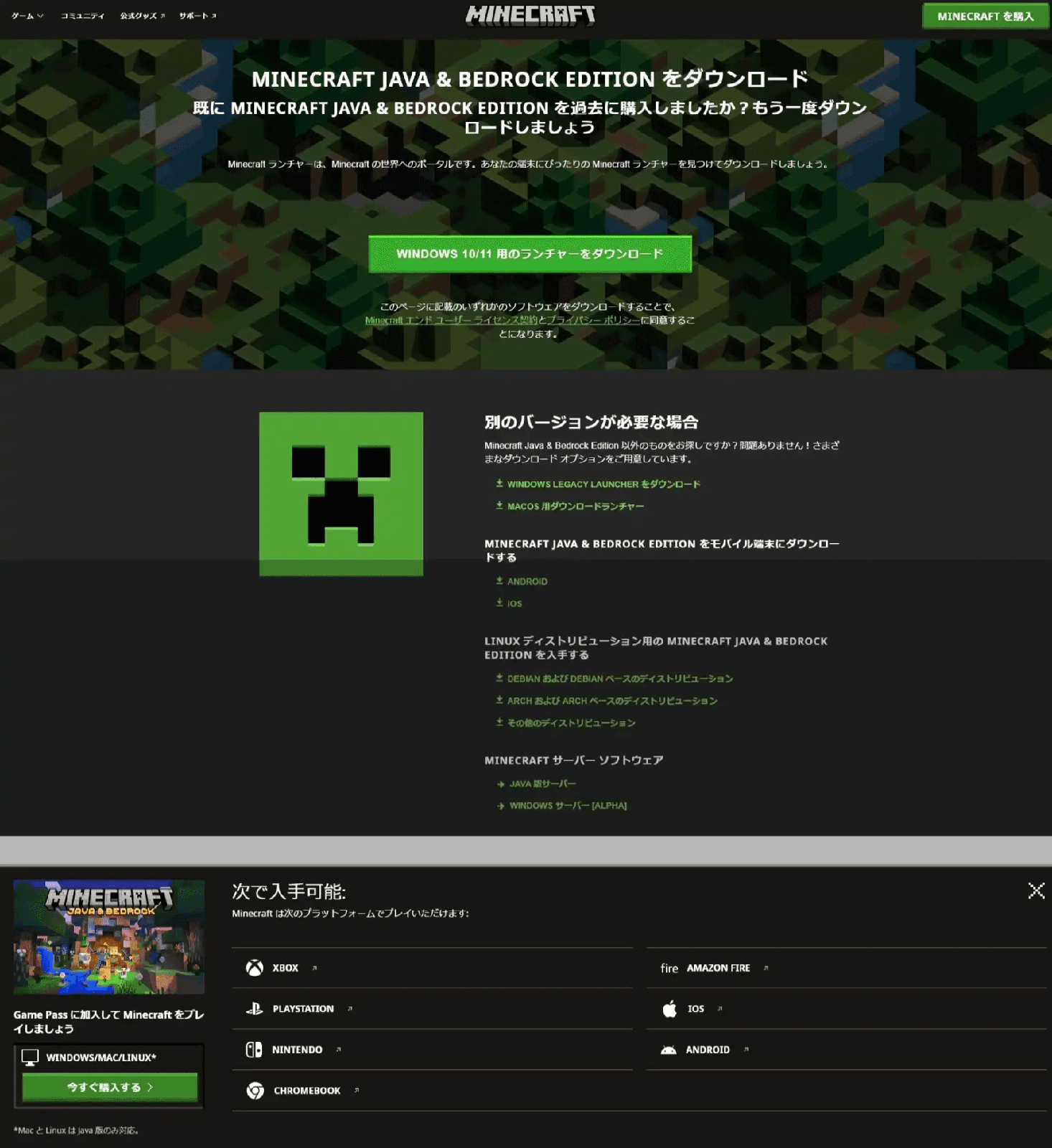
https://www.minecraft.net/en-us/download
Installing Minecraft
Next, install the purchased Minecraft. Here’s how:
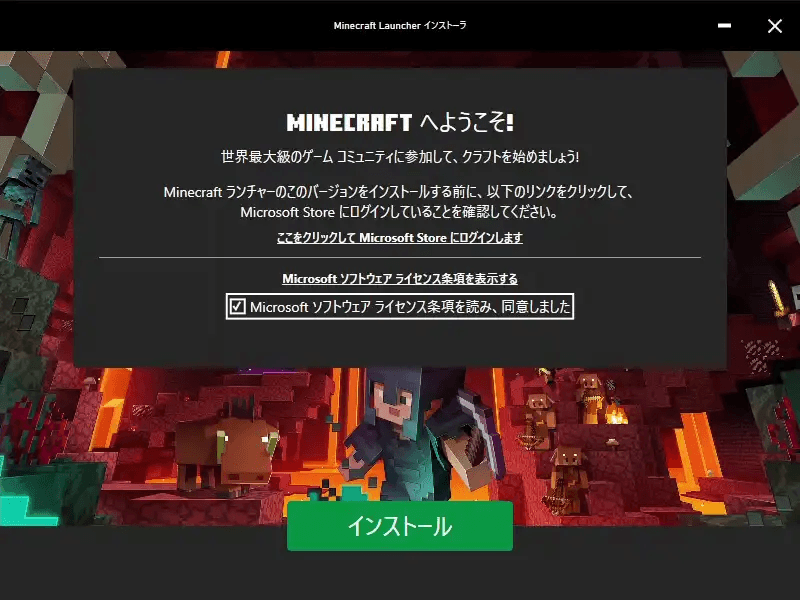
Launch the Minecraft installer downloaded from the official website.
Check the box “I have read and agree to the Microsoft Software License Terms” and click “Install.”
Wait a moment and a screen like the one below will appear. Click “Let’s Start!” to launch the Minecraft launcher.
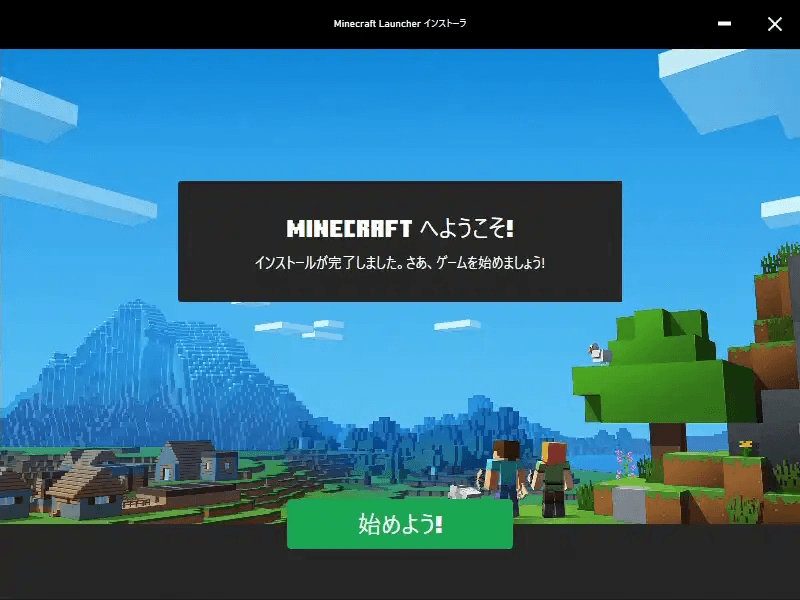
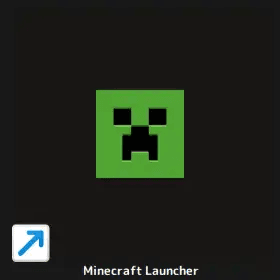
Once installation is complete, a Minecraft icon will be created on your desktop as shown below.
Launching Minecraft and Logging In
Once installed, launch Minecraft and log in. Here’s how:
Double-click the Minecraft icon on your desktop to launch it.
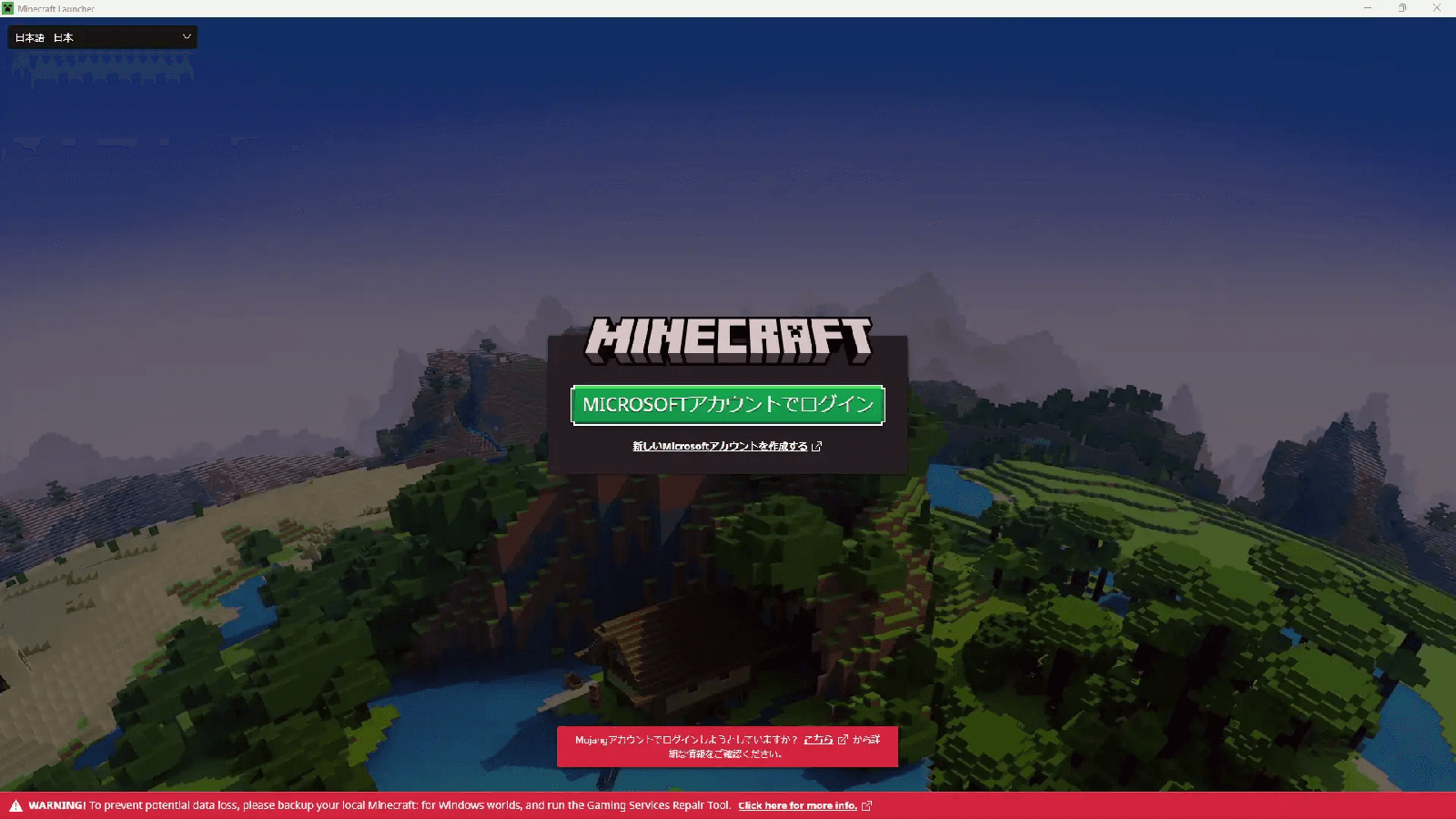
The login screen will appear. Click “Log in with Microsoft Account” and log in.
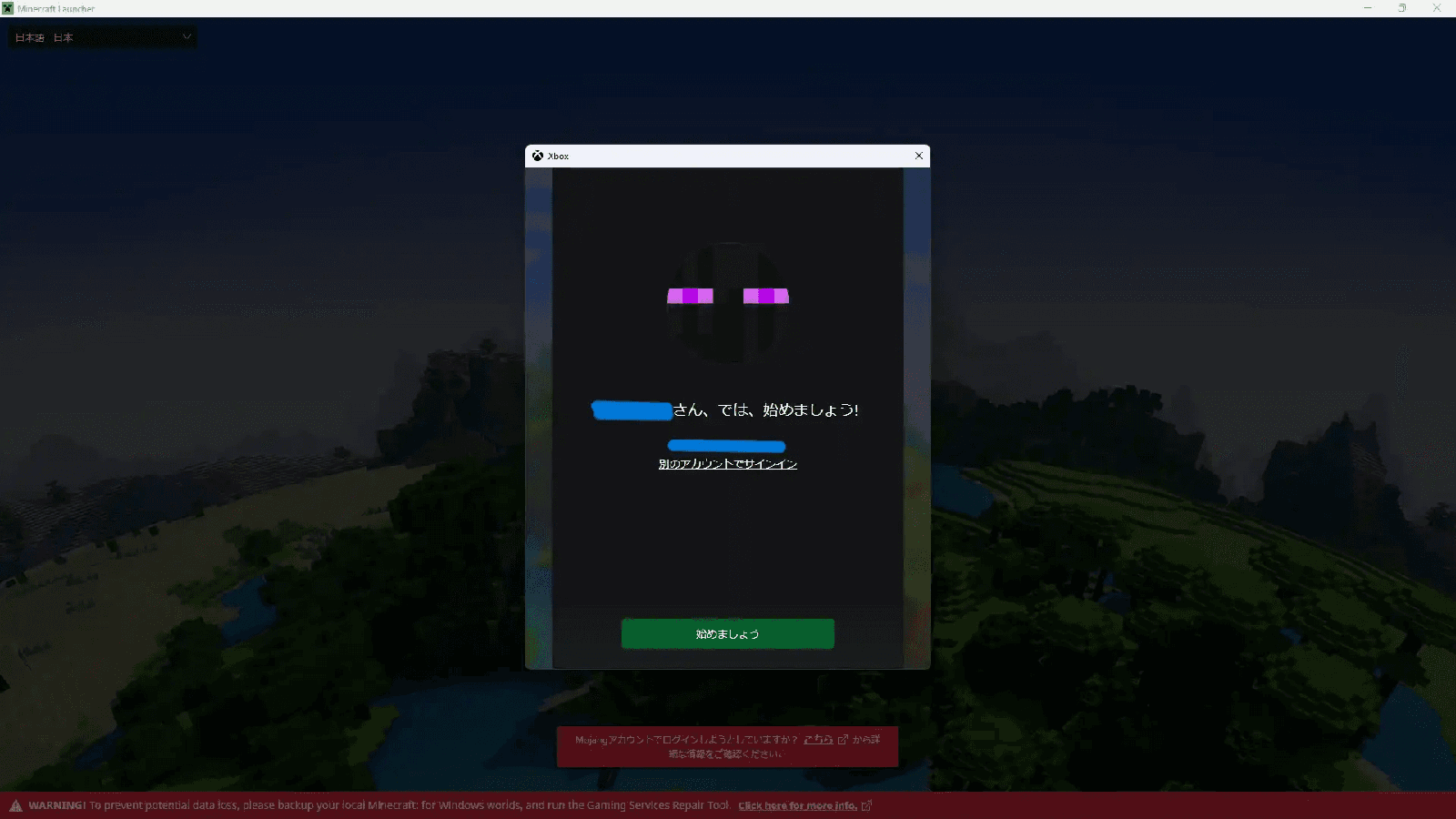
Confirm that the account is yours and click “Let’s Go.”
The Minecraft main screen will appear.
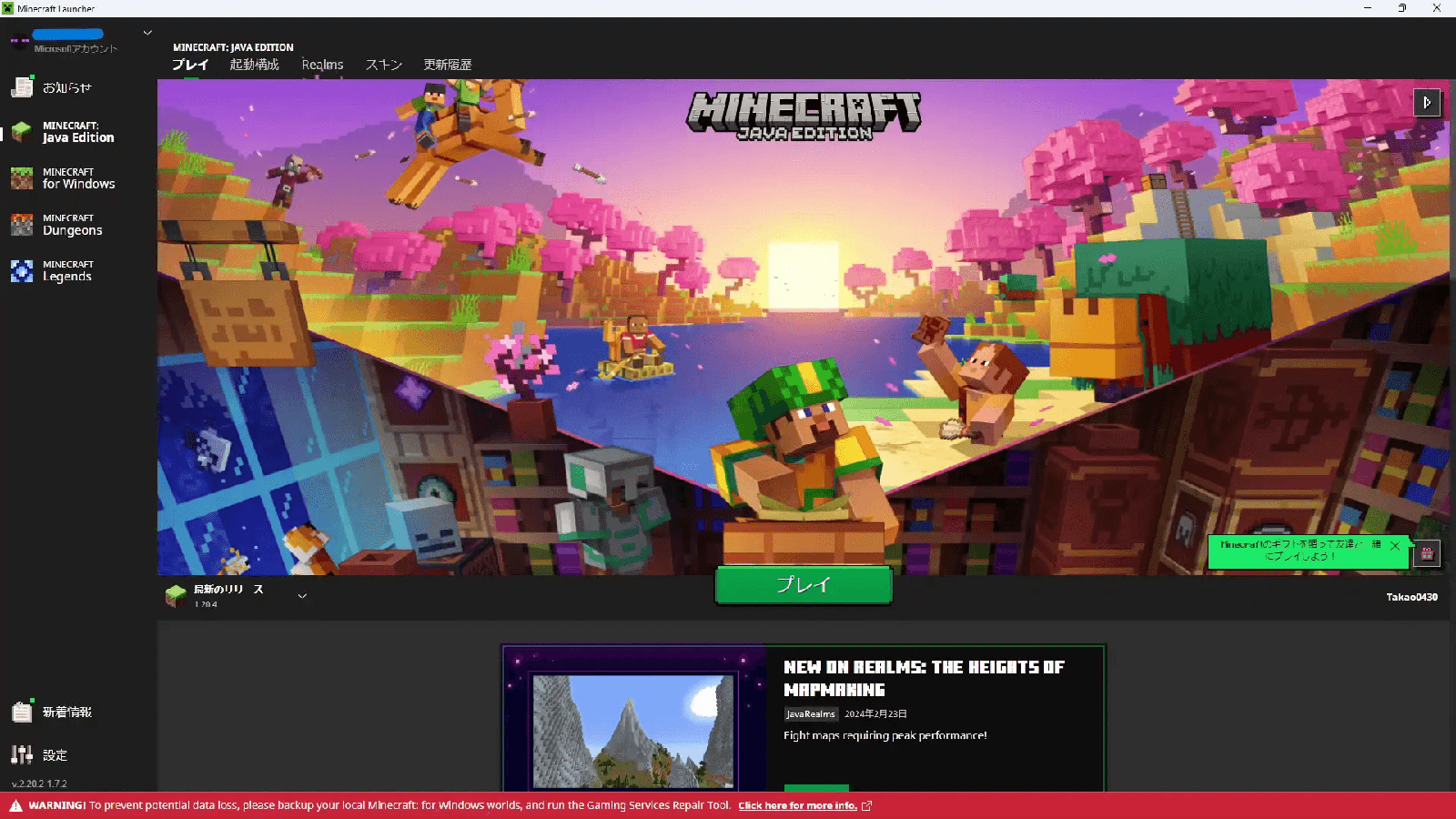
To play the latest version of Minecraft, simply click the “Play” button in the center to start the game.
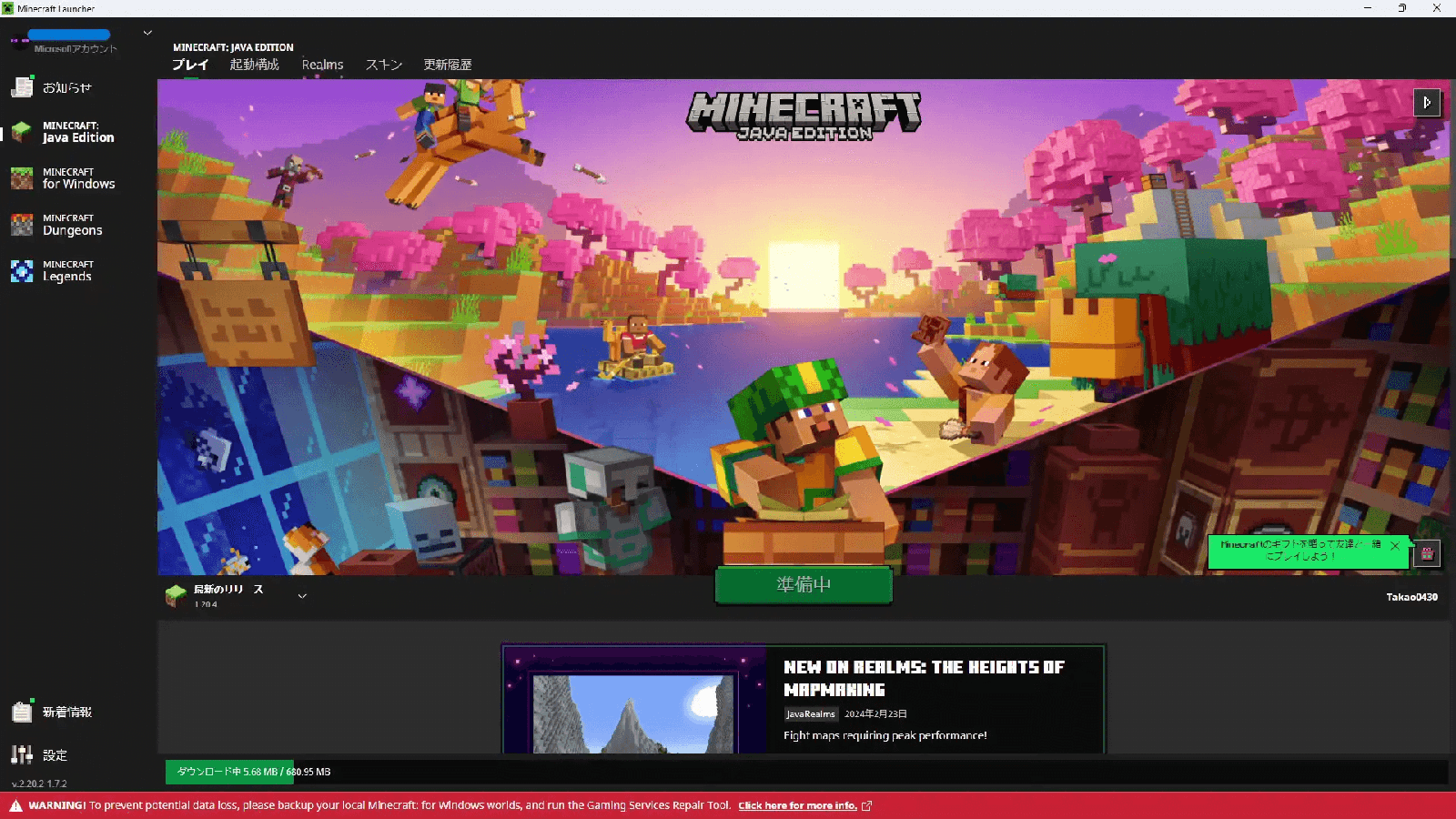
If you want to play an older version for custom maps or other reasons, you can change the version from the launch configuration.
A detailed article on this will be posted later.
Starting the Game and Creating a New World
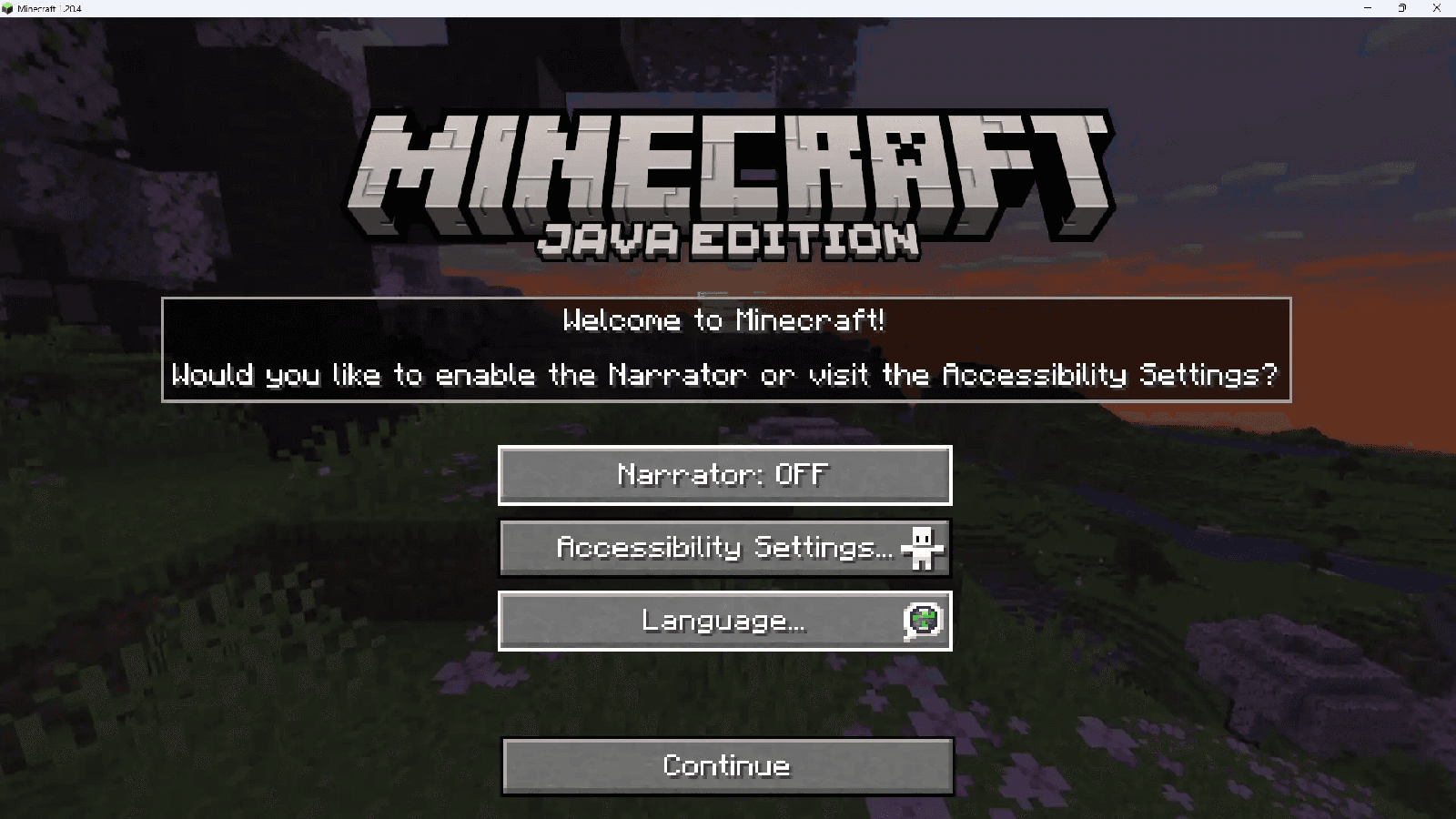
When you first launch Minecraft, you’ll see a screen like this.
The language is set to English by default, making it hard to navigate. Click “Language…” to change it.
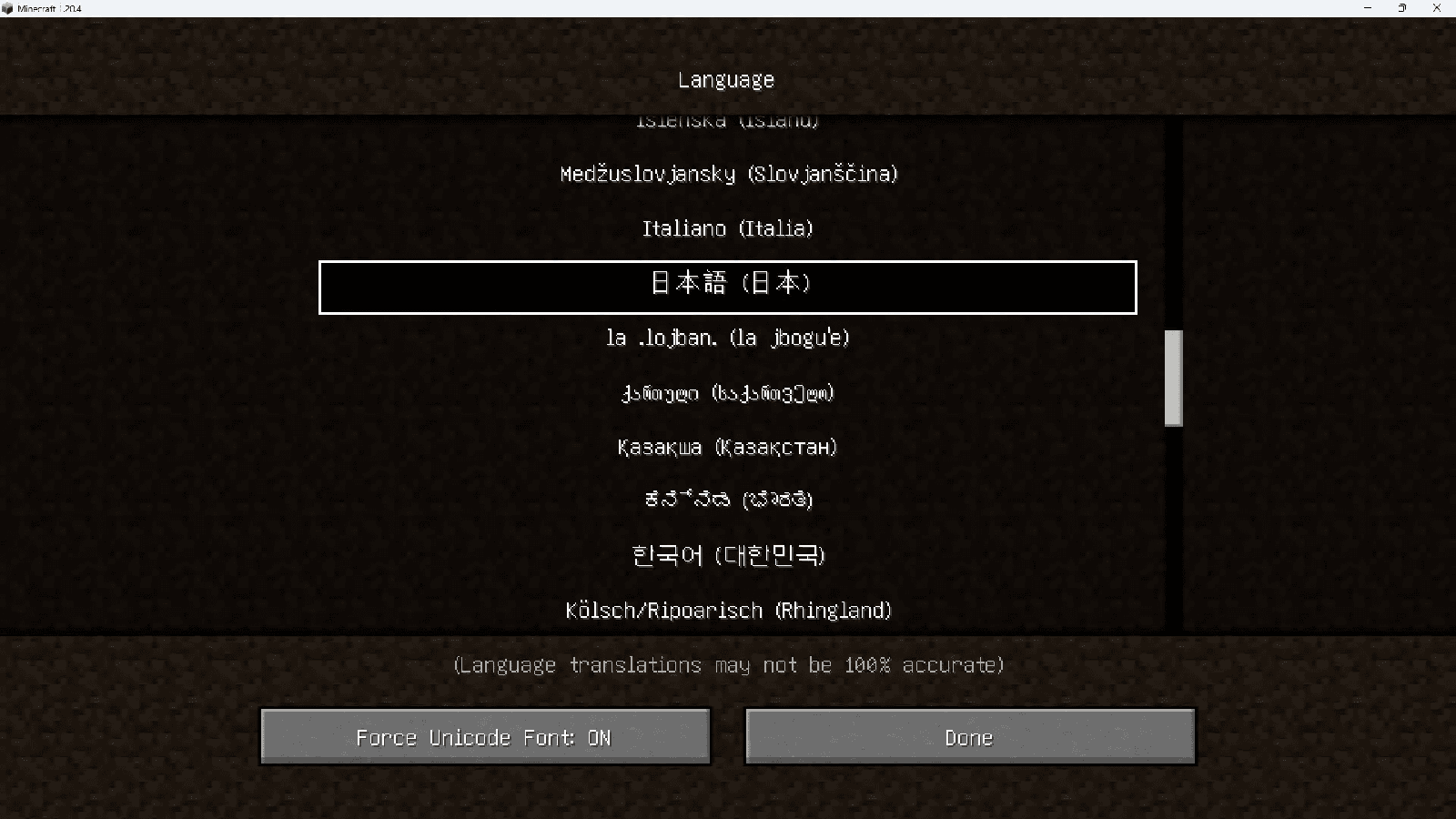
Select your preferred language from the list.
Also, turning on “Force Unicode Font” makes the text visually much clearer.
Once done, click “Done.”
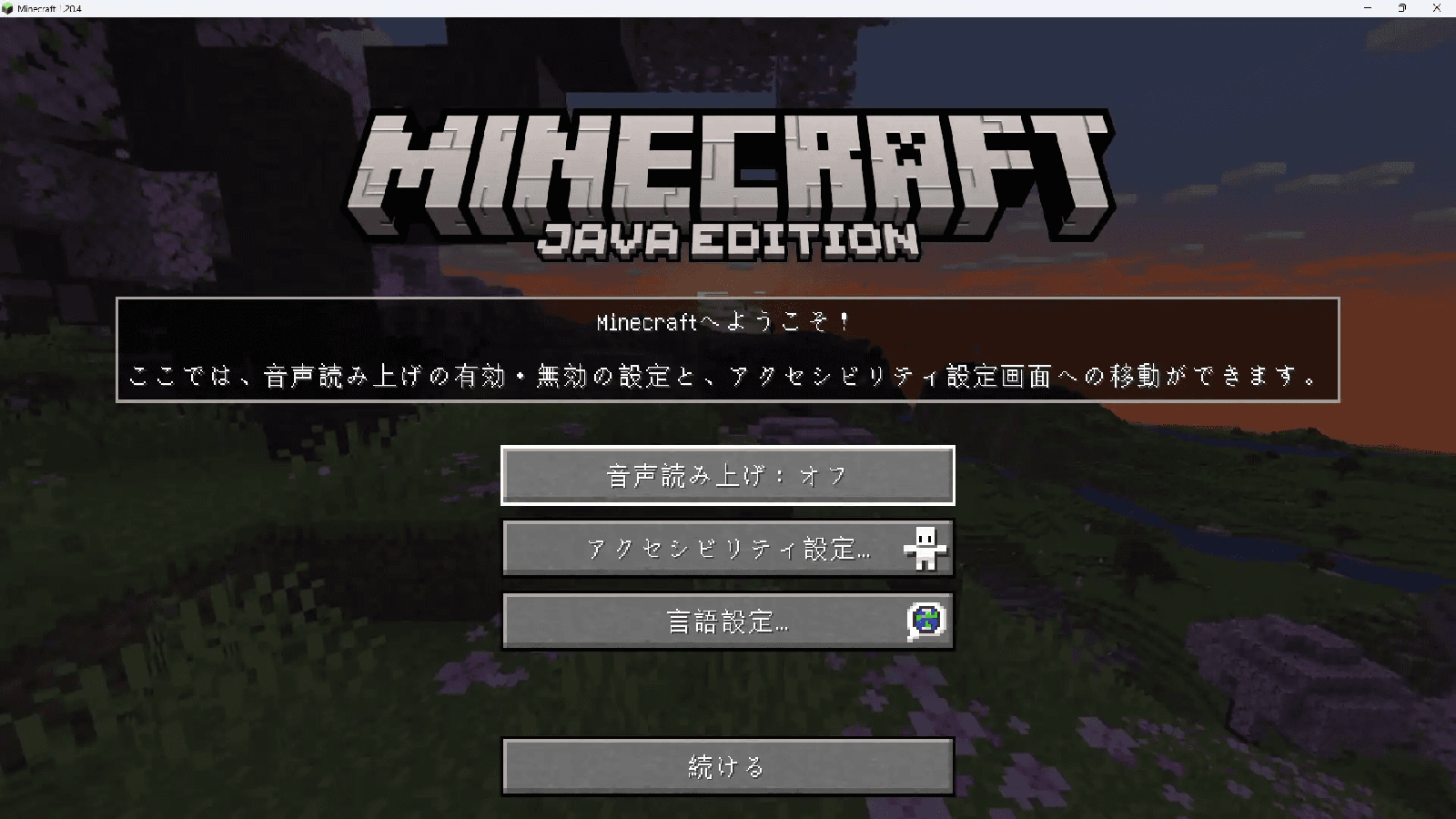
The language has now been changed.
Click “Continue” to go to the title screen.
This is the title screen.
For first-time players, we recommend selecting “Singleplayer.”
Articles explaining “Multiplayer” and “Minecraft Realms” will be posted later.
Articles on recommended settings will be posted later.
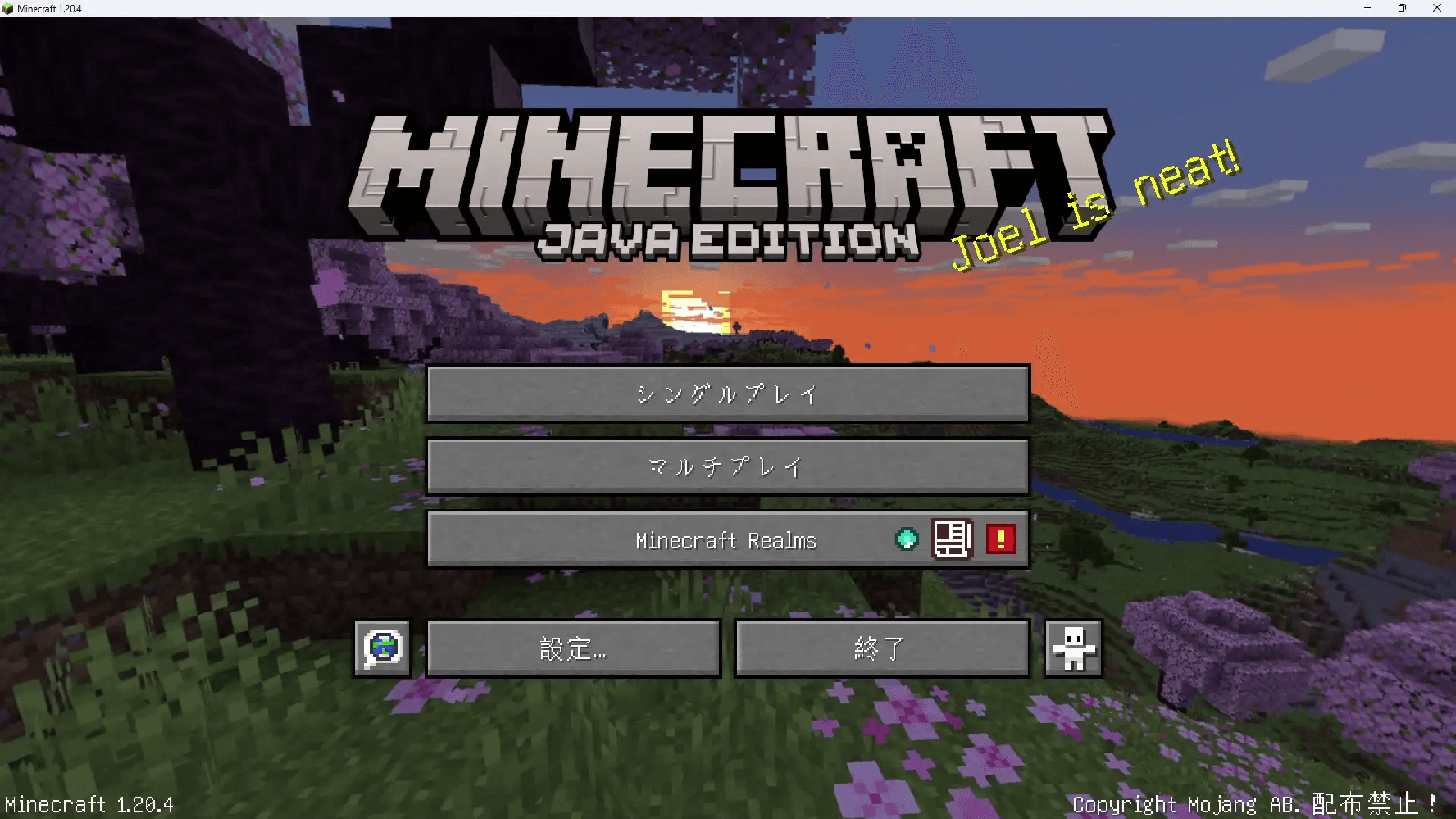
Initial setup is complete! Great job.
To start playing Minecraft, select “Singleplayer.” You’ll see a screen like this.
For first-time players, the default settings are generally fine, but my recommended settings are: set the “World Name” to your preference, change “Difficulty” from Normal to Easy, and turn “Bonus Chest” from Off to On.
Articles explaining game mode types, difficulty levels, and how to choose them will be posted later.
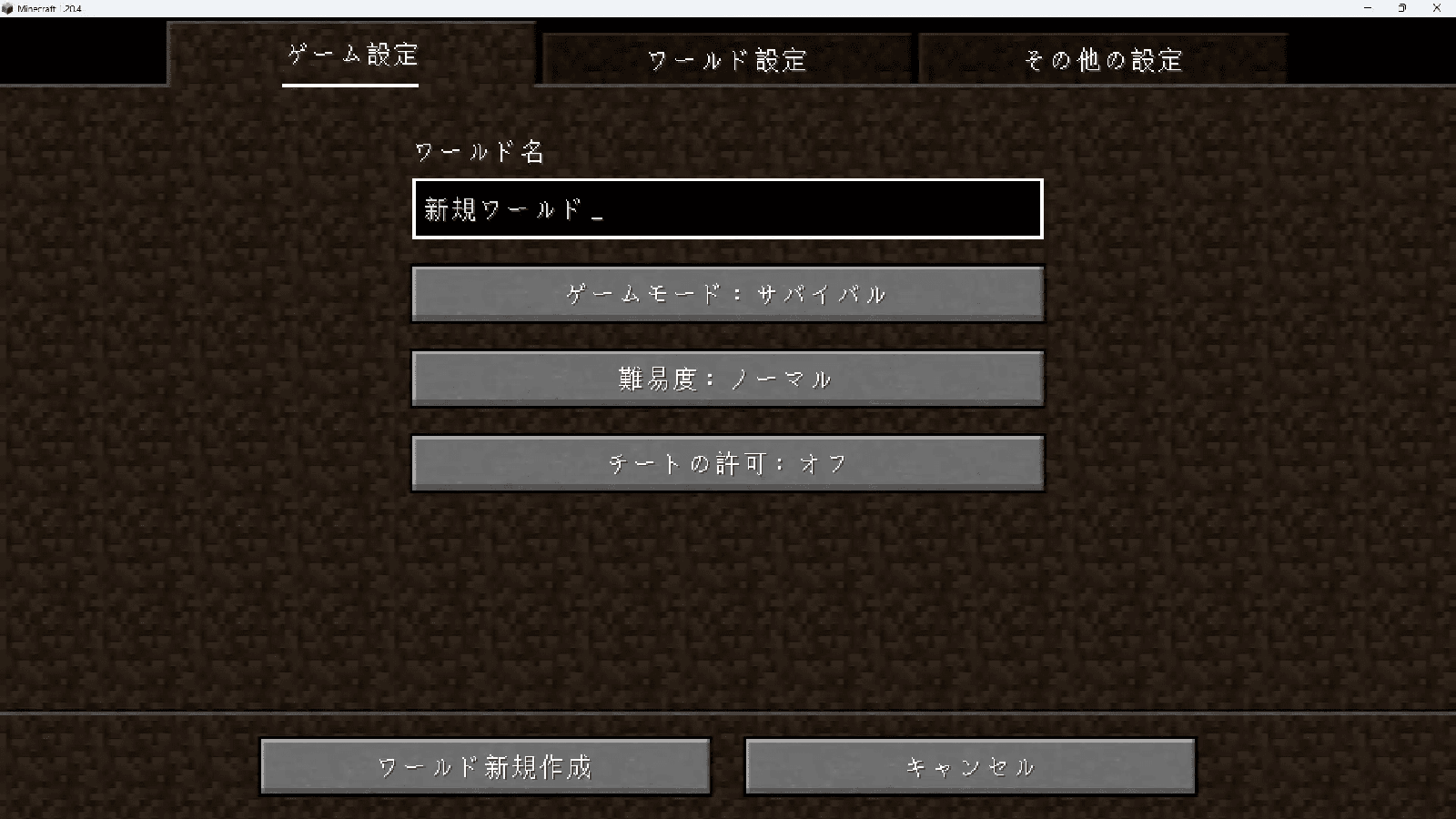
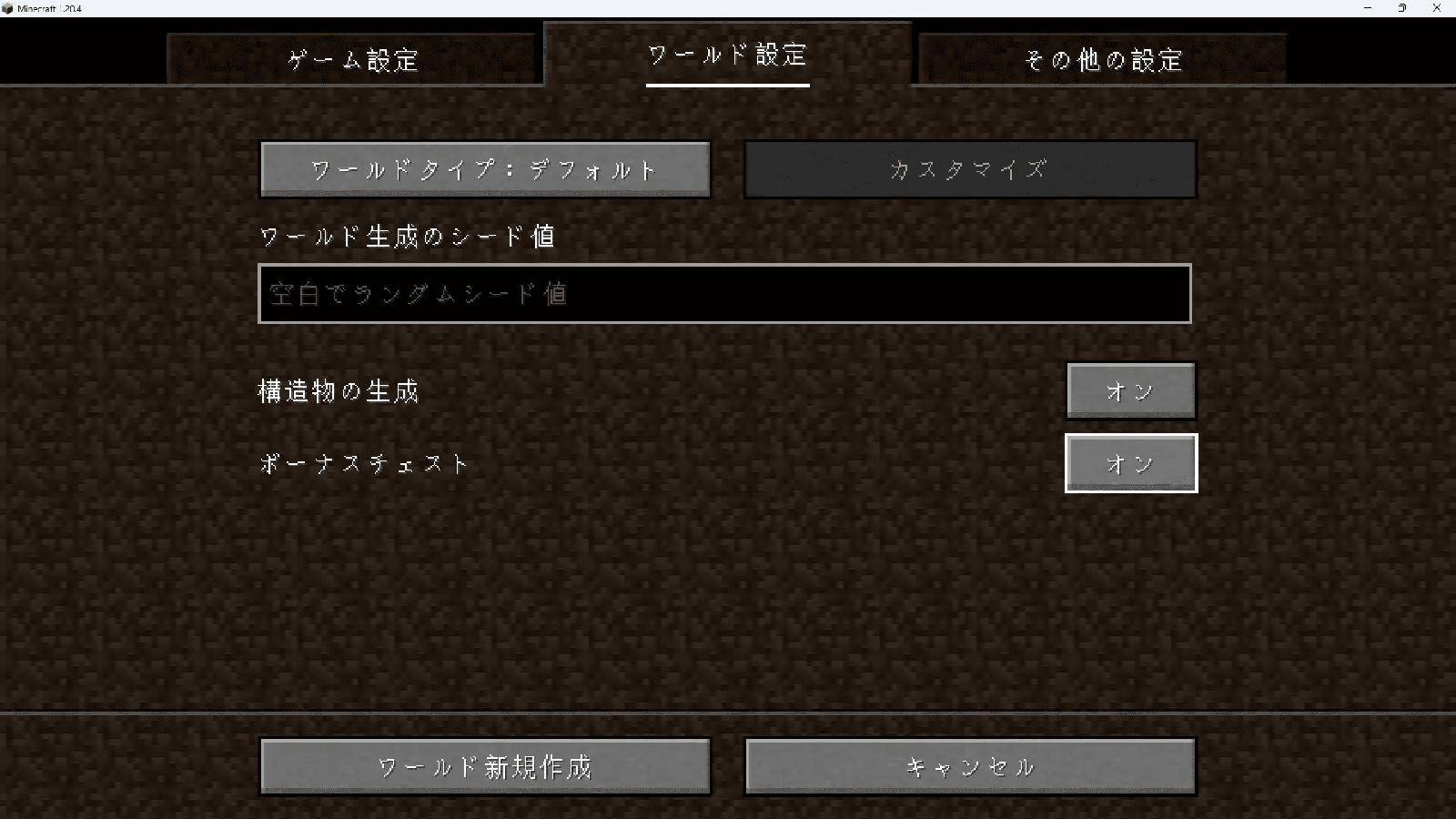
Click “Create New World” to start the game.
Basic Controls
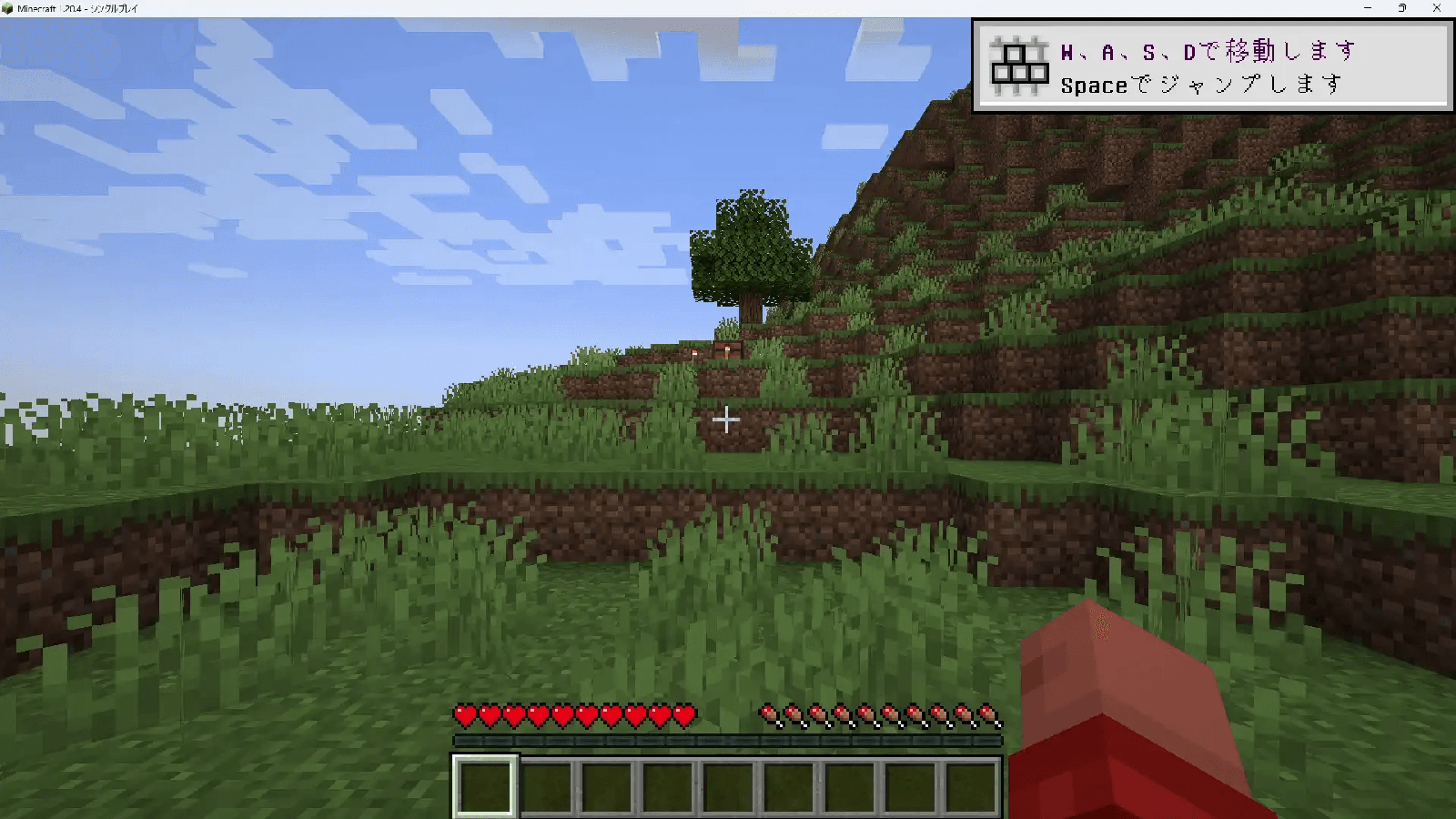
- Movement: W (forward), A (left), S (backward), D (right)
- Jump: Space bar
- Sneak: Left Shift key
- Select item: Mouse scroll wheel or number keys
- Use item/place block: Right click
- Destroy block: Left click
- Open inventory: E key
Playing in Survival Mode
In Survival Mode, the goal is to gather materials and survive. First, punch a tree with your hand to get wood. Then create a crafting table to make tools. Use wood to make a wooden pickaxe, then mine stone with it. Stone tools are more efficient than wooden ones. Food can be obtained by hunting animals or farming.
Summary
That covers the basics of Minecraft installation, launch, basic controls, and playing in Survival Mode. For first-time players, start by mastering these basic operations, then freely explore and create in the game world.